ParitLAB
← All softwarePZE-024 / STABLE

Precision Entry Zones — Regression & Trade Manager

MT5 entry-zone analysis with a regression channel and a draggable, scalable trade-management panel.

LAB REPORT / PZE-024
01

The problem

Entry analysis and order management are often split across multiple tools.

02

How it works

Combine entry zones, regression, and trade controls on one chart.

03

Experiment & testing

Compiled and issued new customer-specific keys while preserving all legacy entitlements.

04

Results

  • Linear regression ±2 SD
  • Market and pending orders
  • Close, break-even, and pending deletion
  • Draggable, collapsible, scalable panel
PZE v2.4 / USER GUIDE

Precision Entry Zones v2.4 guide

From download and MetaTrader 5 activation to reading zones, regression, and managing orders from the chart.
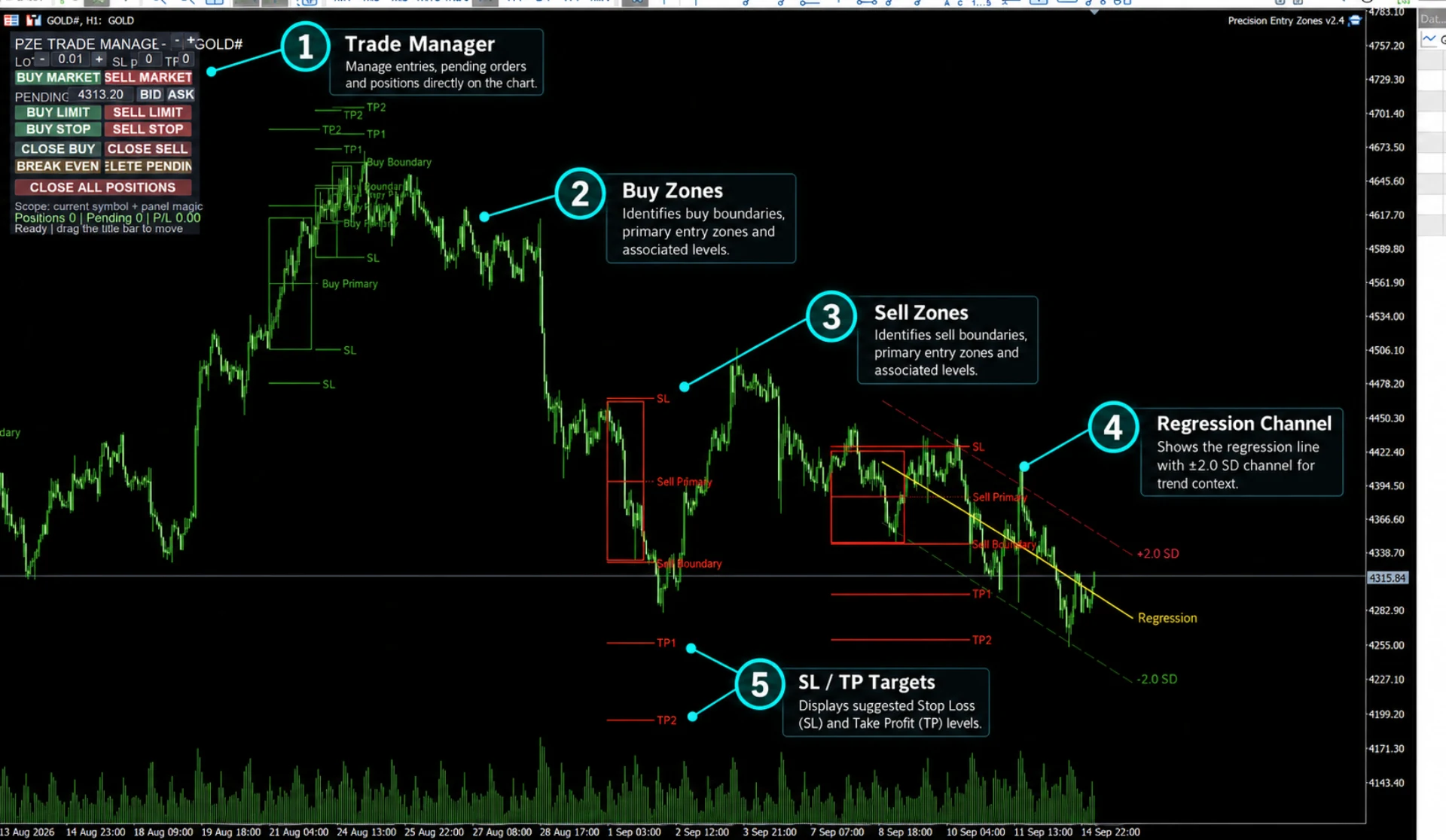
Precision Entry Zones v2.4 feature overview on a MetaTrader 5 chart
Illustrated live chart: Trade Manager, Buy/Sell Zones, Regression Channel, and SL/TP levels.
01
INSTALL / ACTIVATE

Install and activate on MT5

Important: Although described as an indicator, this release can place trades, so install it under MQL5 › Experts › Paritlab.
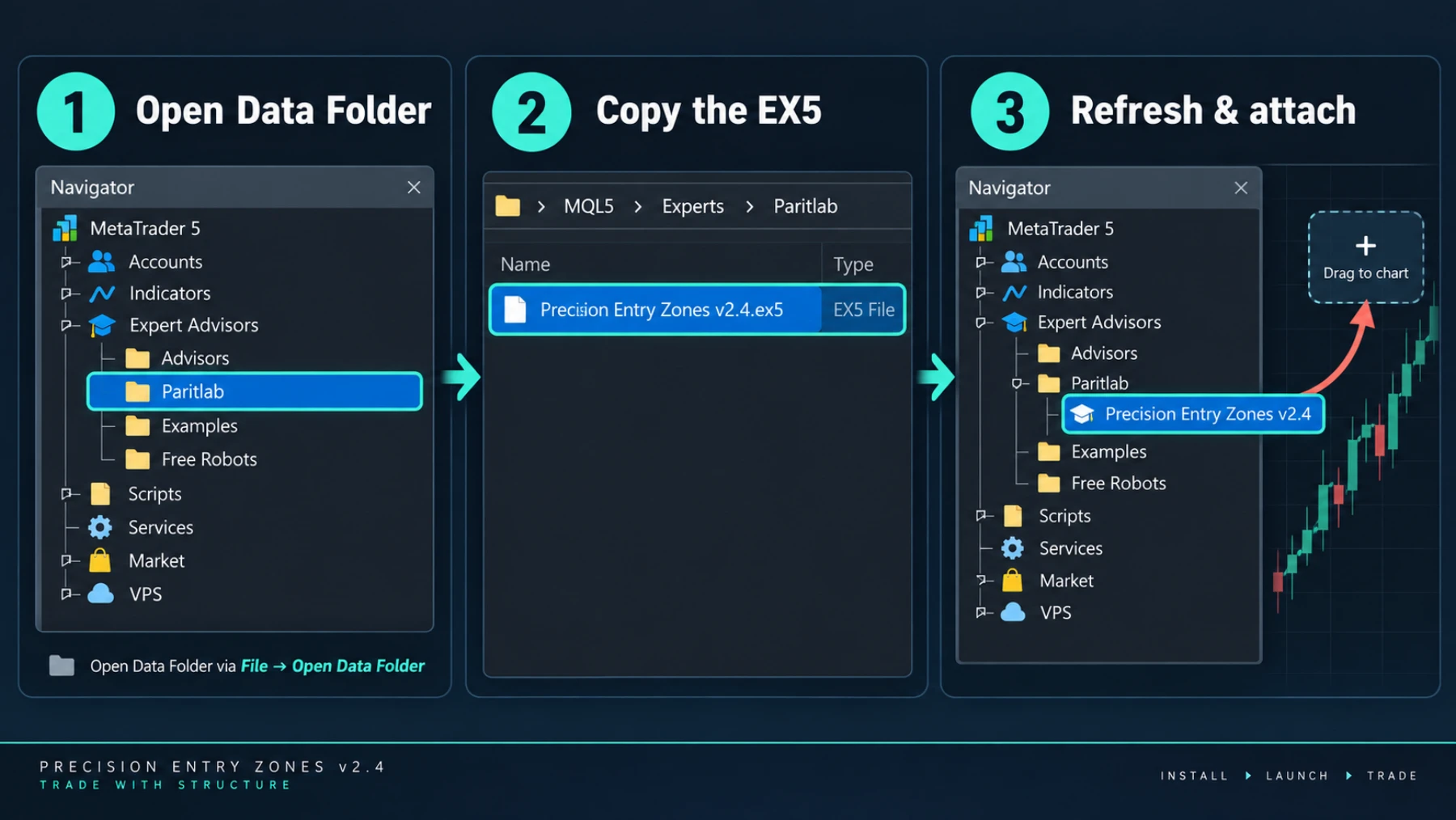
  1. Sign in and downloadOpen the client portal, download the .ex5 file, and copy the v2.4 CD key from the same row.
  2. Open the MT5 data folderIn MT5 choose File › Open Data Folder, then open MQL5 › Experts.
  3. Copy into ParitlabCreate the Paritlab folder if needed, then copy Precision Entry Zones v2.4.ex5 into it.
  4. Refresh NavigatorRight-click Expert Advisors in Navigator, choose Refresh, then drag v2.4 onto a chart.
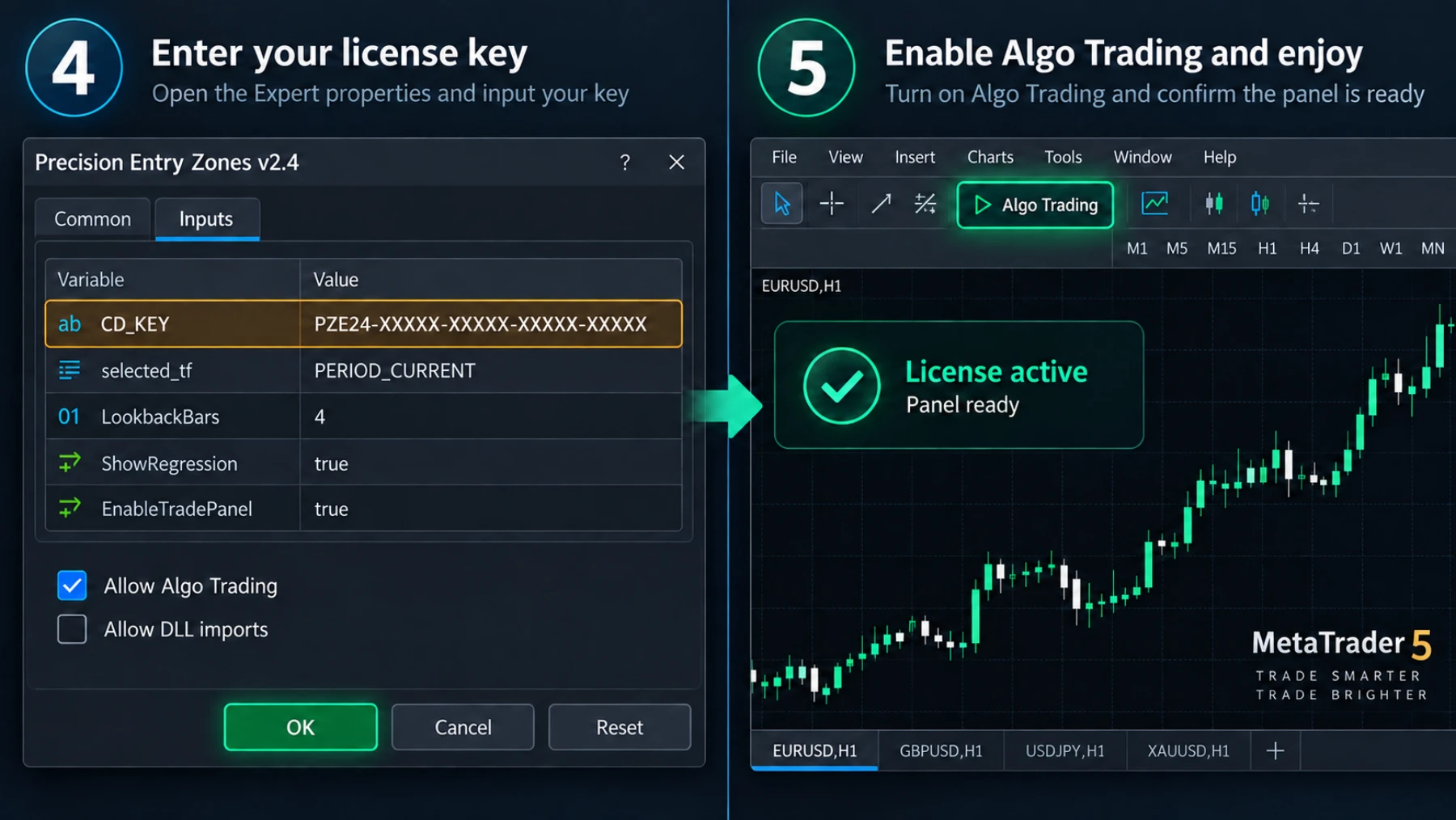
  5. Enter the key and allow tradingInputs: paste the key into CD_KEY • Common: enable Allow Algo Trading • DLL imports are not required.
  6. Enable Algo TradingTurn on Algo Trading in the toolbar and confirm that the panel appears on the chart.
Copying the EX5 into Experts and attaching it to a chart
Steps 1–3: open the data folder, copy the EX5, and refresh.
Entering the CD key and enabling Algo Trading
Steps 4–5: use the v2.4 key and enable Algo Trading.
02
READ THE CHART

Read zones and regression

Buy Zone

Green boxes and lines mark bullish structure. Buy Primary is the reference entry, Buy Boundary is the zone edge, with SL, TP1, and TP2.

Sell Zone

Red boxes and lines mark bearish structure. Sell Primary and Sell Boundary define the entry area, with SL, TP1, and TP2.

Regression Channel

The yellow center line is linear regression calculated from closed bars. +2.0 SD and −2.0 SD provide trend and price-location context.
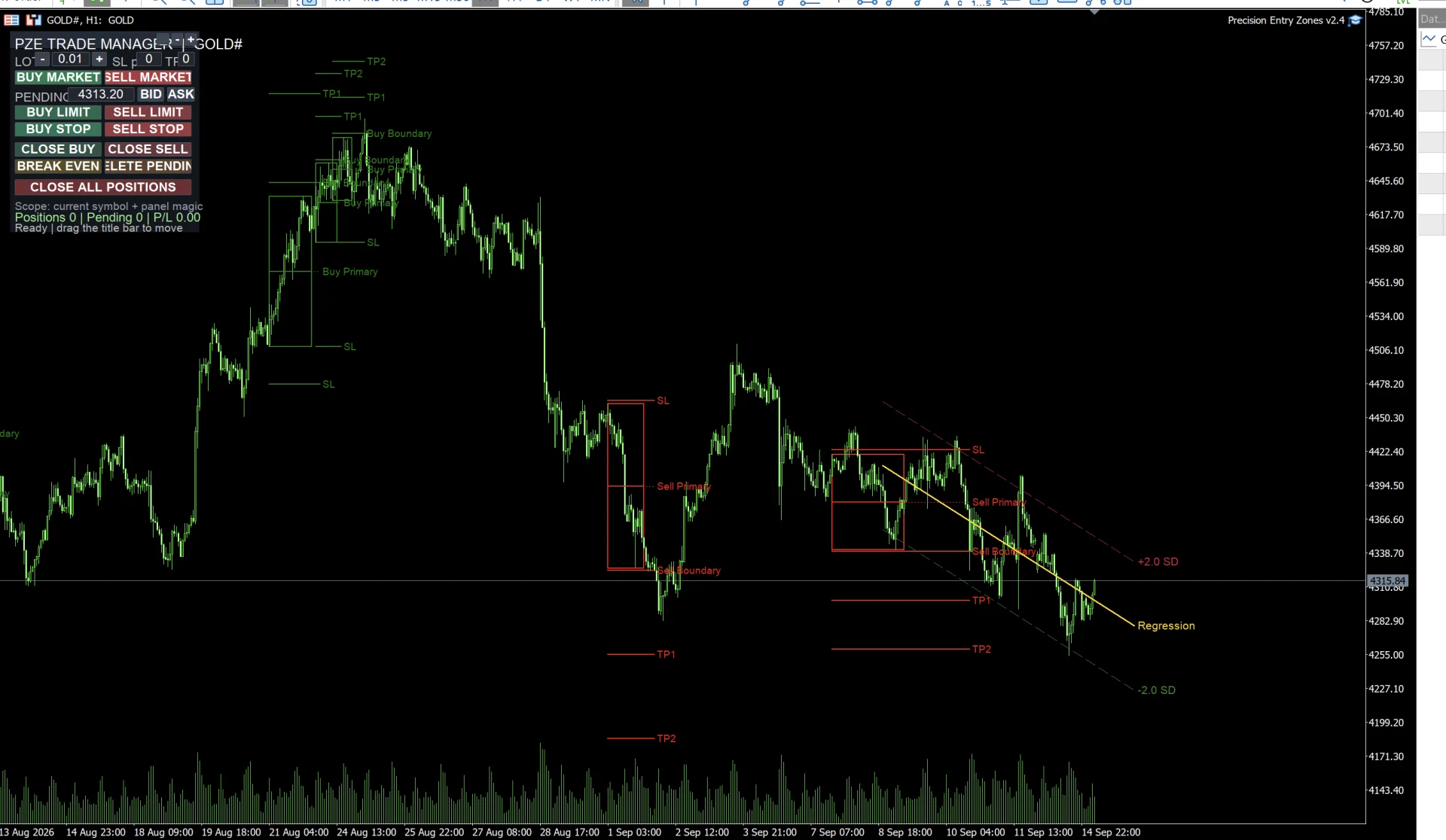
Live chart with buy and sell zones plus the Regression Channel
Live example—zones are decision support, not a guarantee that price will reach a target.
03
TRADE MANAGER

Place and manage orders from the chart

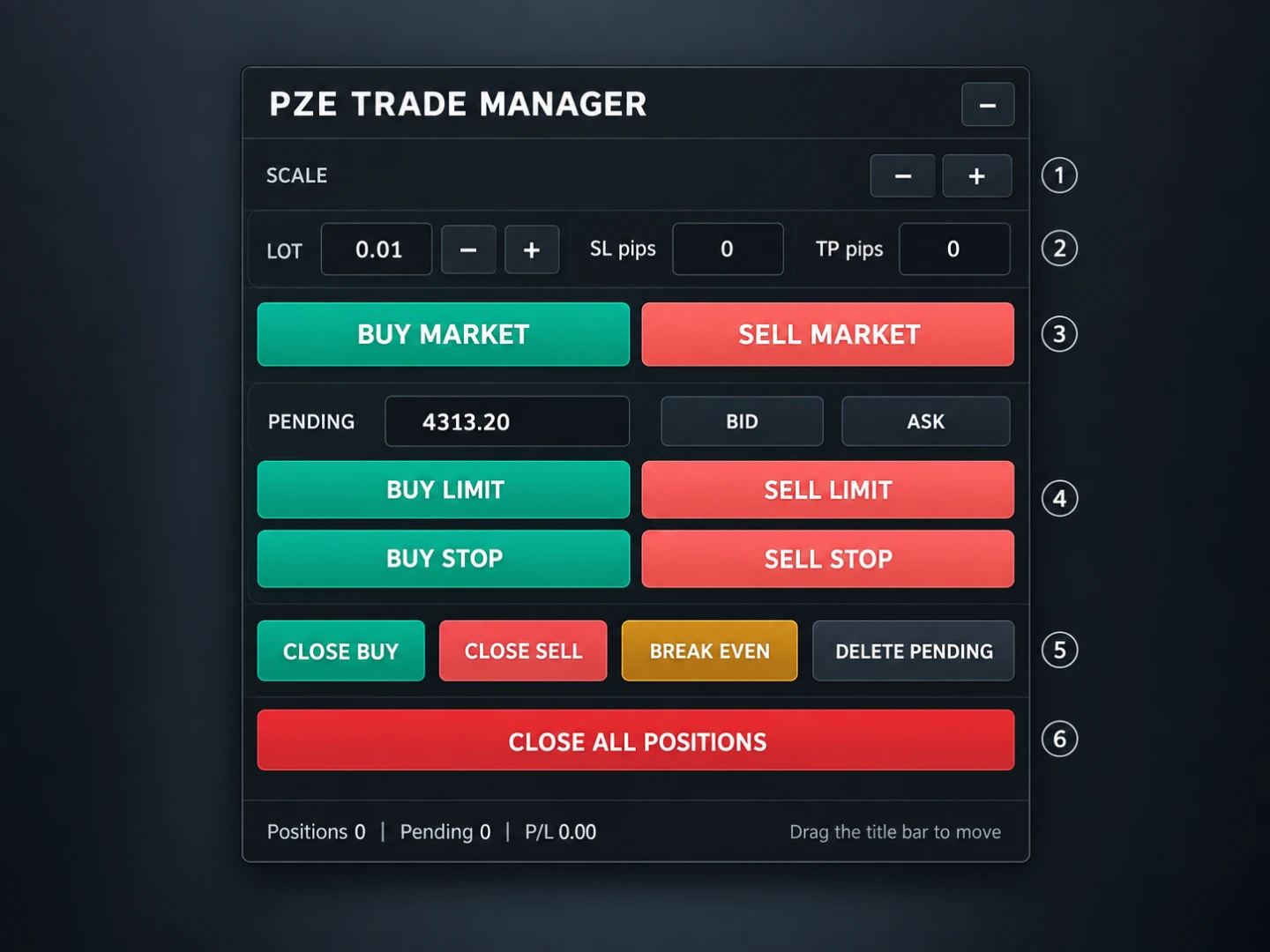
PZE Trade Manager panel mockup
Clean panel mockup for clear control placement.
  1. Collapse, scale, and moveUse _ to collapse, −/+ to scale from 70–140%, and drag the title bar to reposition.
  2. LOT / SL pts / TP ptsSet lot size and SL/TP distances in points; 0 means no level is set.
  3. BUY MARKET / SELL MARKETSend an immediate market order. Check lot, SL, and TP before clicking.
  4. Pending ordersEnter a price or use BID/ASK, then choose the appropriate Buy/Sell Limit or Stop relative to current price.
  5. Manage tradesClose Buy/Sell closes one side, Break Even moves SL to entry, and Delete Pending removes pending orders.
  6. CLOSE ALL POSITIONSRequires a second click within five seconds to prevent accidental closing of all managed positions.
Scope: By default PanelOnlyOwnMagic = true, so controls affect only the current symbol and orders created by this panel magic number.
04
INPUTS

Settings to understand before changing

selected_tfCalculation timeframe; PERIOD_CURRENT follows the chart.
LookbackBars / bars_checkSwing width and scan history. Higher values require more processing.
MaxSetups / DedupTolATRLimit visible setups and merge nearby zones.
RegressionPeriodNumber of closed bars used for regression; default 100.
RegressionDeviationStandard-deviation multiplier; default 2.0 SD.
PanelMagicNumberIdentifier for panel orders; avoid sharing it with another EA.
PanelOnlyOwnMagicKeep true so the panel does not manage unrelated trades on the same symbol.
05
TROUBLESHOOTING

If it does not start

CD key shows invalid

Confirm that you attached v2.4—not v2.3—then copy the key from the client portal without spaces. It must use XXXXX-XXXXX-XXXXX-XXXXX-XXXXX.

Panel is not visible

Check EnableTradePanel = true and enable Algo Trading in the toolbar.

Orders are rejected

Check market hours, broker lot limits, available margin, and the Experts/Journal message.

Lines have not updated

The tool processes on a new bar and regression uses closed bars, so lines do not need to move on every tick.

Risk warning

This tool visualizes price structure and manages orders; it does not guarantee profit. Test on demo, verify lot/SL/TP every time, and remain responsible for orders submitted from the panel.